This guide is for the free WooCommerce Stripe Payment Gateway plugin, the most common way to take Stripe payments in WooCommerce. Most Stripe problems fall into five groups. Pick the one you’re seeing.
Check Stripe is connected and switched on
Go to WooCommerce›Settings›Payments and open Stripe. If you see the screen below, Stripe isn’t connected yet, so it can’t appear at checkout. Press Create or connect an account and sign in to your Stripe account.
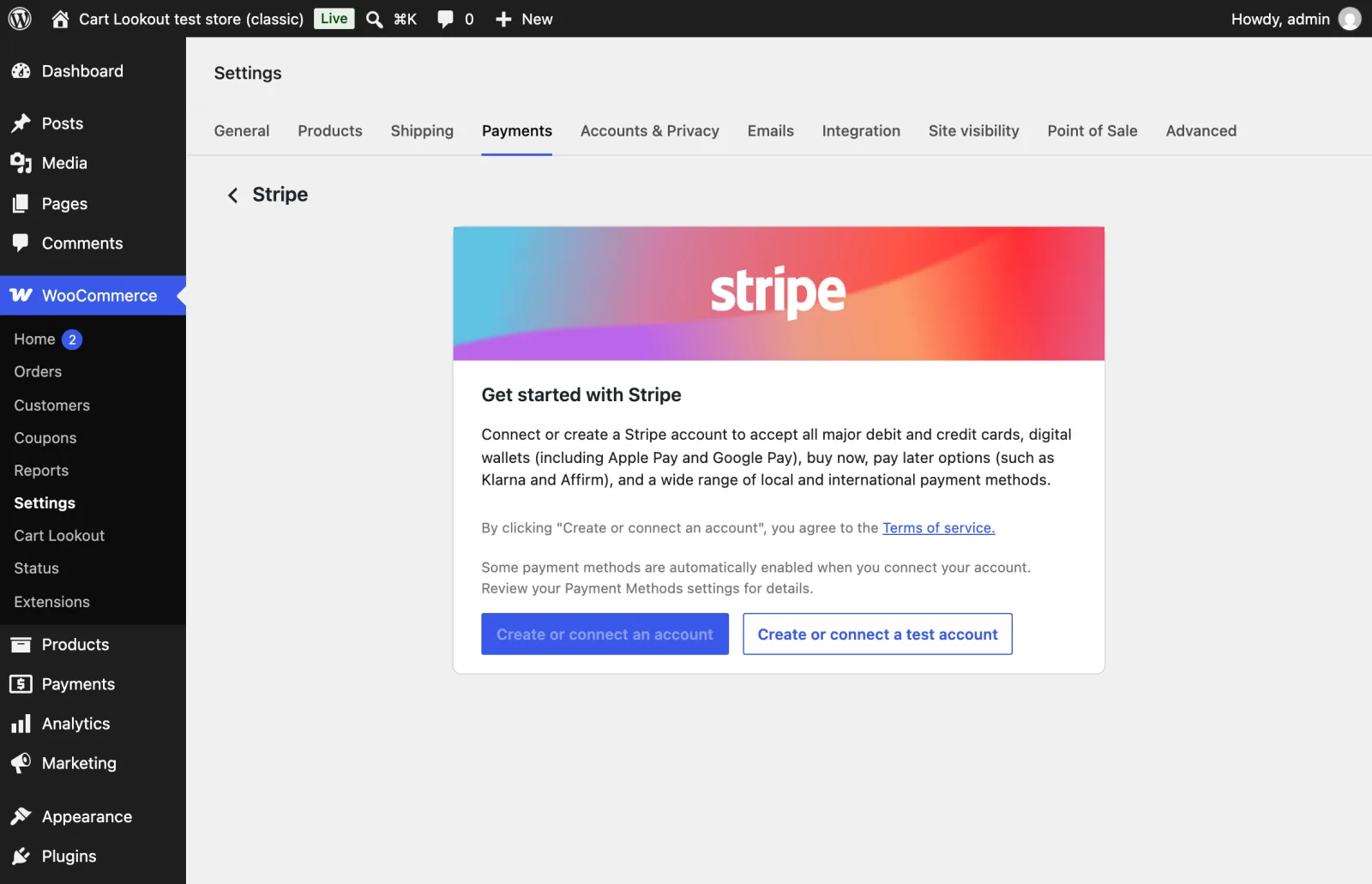
Once it’s connected, check the payment methods list in the same settings: Card must be switched on, plus any others you want to offer.
Test mode or live mode?
Stripe keeps test and live payments completely separate. Mixing them up is one of the most common causes of failed payments:
- Test mode on a live shop: real cards are refused, and no real money arrives.
- Live mode: Stripe’s test card numbers are refused. Only real cards work.
- Switched accounts or keys: customers and payments saved in one mode don’t exist in the other, so returning customers can fail.
To check the setup on a staging copy or in test mode, use Stripe’s standard test card with any future date and any three-digit code:
4242 4242 4242 4242
Find the real reason a payment failed
Shoppers usually see a short, general message. The real reason is in two places. In your Stripe Dashboard, open Payments and click the failed payment: it shows the decline reason or whether Stripe’s fraud rules (Radar) blocked it. In WordPress, switch on Log debug messages in the Stripe settings, then look under WooCommerce›Status›Logs for the woocommerce-gateway-stripe log.
| Message | What it means | What to do |
|---|---|---|
Your card was declined. | The customer’s bank said no. | Usually nothing on your side. If many cards fail at once, check the Stripe Dashboard for a pattern. |
Invalid API Key provided | The keys the plugin uses were changed, deleted or rolled in Stripe. | Reconnect Stripe in the plugin settings. |
No such customer … a similar object exists in test mode | Saved details from test mode are being used in live mode, or the other way round. | Check the mode; returning customers may need to enter their card again. |
Blocked (in the Stripe Dashboard) | Stripe’s fraud rules stopped the payment. | Review the payment and your Radar rules in Stripe. |
There was an error processing the payment | A general message; the log has the detail. | Read the woocommerce-gateway-stripe log for that time. |
Card fields don’t load
Stripe’s card form comes from Stripe’s own script (js.stripe.com). If that script is delayed, combined with others or blocked, the card fields stay empty and the shopper can’t pay.
- Exclude the checkout page from “delay JavaScript”, “combine” and “minify” settings in your optimisation or caching plugin.
- Clear every cache: plugin, host and CDN.
- If you or a security plugin set a Content Security Policy, it must allow Stripe’s domains.
The browser console on the checkout page (F12 → Console) shows which one it is: a red error naming the plugin or the blocked Stripe address.
at checkout.js:212 /wp-content/plugins/example-payments/assets/checkout.js
Orders stuck on Pending payment
After a payment, Stripe sends a message to your store (a webhook) to confirm it. If that message can’t get through, the customer has paid but the order stays on Pending payment.
- Customer pays by cardStripe takes the payment.
- Stripe’s confirmation is blockedA new firewall rule refuses it (error 403).
- Order stays on Pending paymentNo confirmation email, nothing to ship.
- Customer emails: “Was I charged?”Yes, and the order looks unpaid.
In your Stripe Dashboard’s developer settings, open Webhooks and look for failed deliveries to your site. The address must be your store’s address followed by /?wc-api=wc_stripe, for example:
https://yourstore.com/?wc-api=wc_stripe
- If deliveries fail with a 403 or a challenge, allow that address in your firewall or security plugin.
- If the webhook is missing or wrong, the Stripe plugin’s settings can set it up again for you.
- Once it works, the stuck orders update as Stripe retries: it keeps retrying failed live messages for up to three days, and you can resend one from the Dashboard.
Apple Pay and Google Pay buttons missing
These buttons only appear when everything below is true, so a missing button on your own phone doesn’t always mean a fault.
Know next time, before your customers do
Stripe problems often start with a change somewhere else: an optimisation plugin update, a new firewall rule, keys rolled in Stripe. Customers rarely report them; they just buy somewhere else.
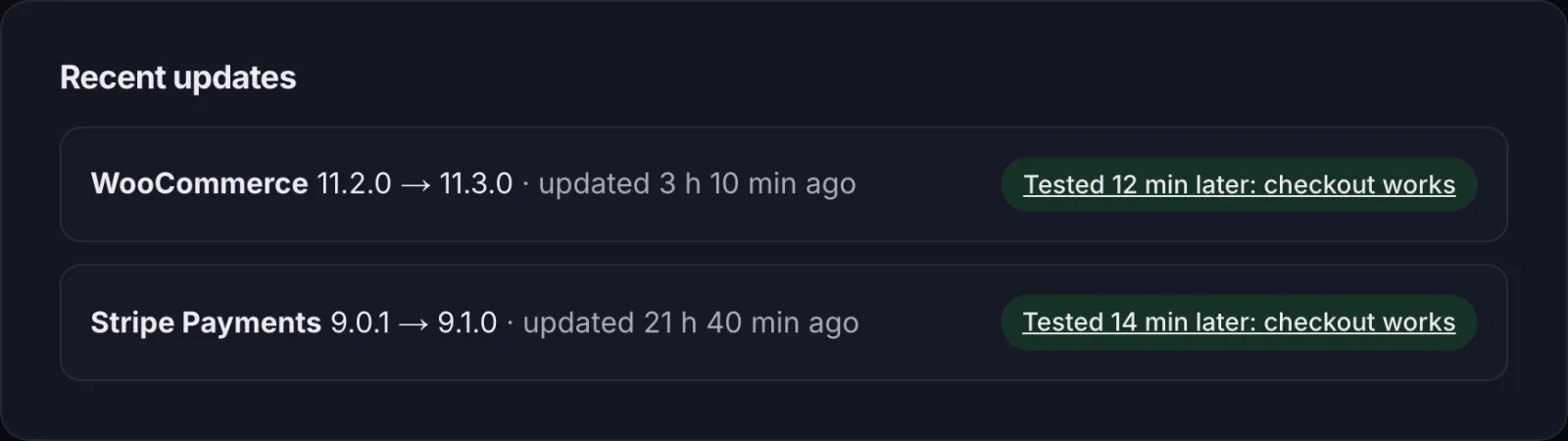
Cart Lookout places a real test order on your store every 2 hours and after every update, then deletes it. Your customers don’t see it and no emails go out. If checkout fails twice in a row, you get an email with the step that broke, a screenshot and the change made just before it.
Still stuck? Email hello@cartlookout.com and a developer will take a look. More fix guides