Allow Cart Lookout through your firewall
Firewalls and bot protection sometimes stop our tester, even when your shop works for customers. Allow this one address and checks get through:
194.39.122.167
The full list, for tools that read it automatically: /ips.txt. Our requests name themselves CartLookout/0.1 (+https://cartlookout.com/bot).
Cloudflare: fix it for me
If your store uses Cloudflare and we’ve been blocked, your store page and the incident show a Fix it for me box. It takes about a minute:
- Press Create a Cloudflare key. Cloudflare opens with the two permissions we need already ticked (read your zones, edit firewall rules).
- Press Continue to summary, then Create Token, and copy the key.
- Paste it into the box on your dashboard and press Add the rule for me.
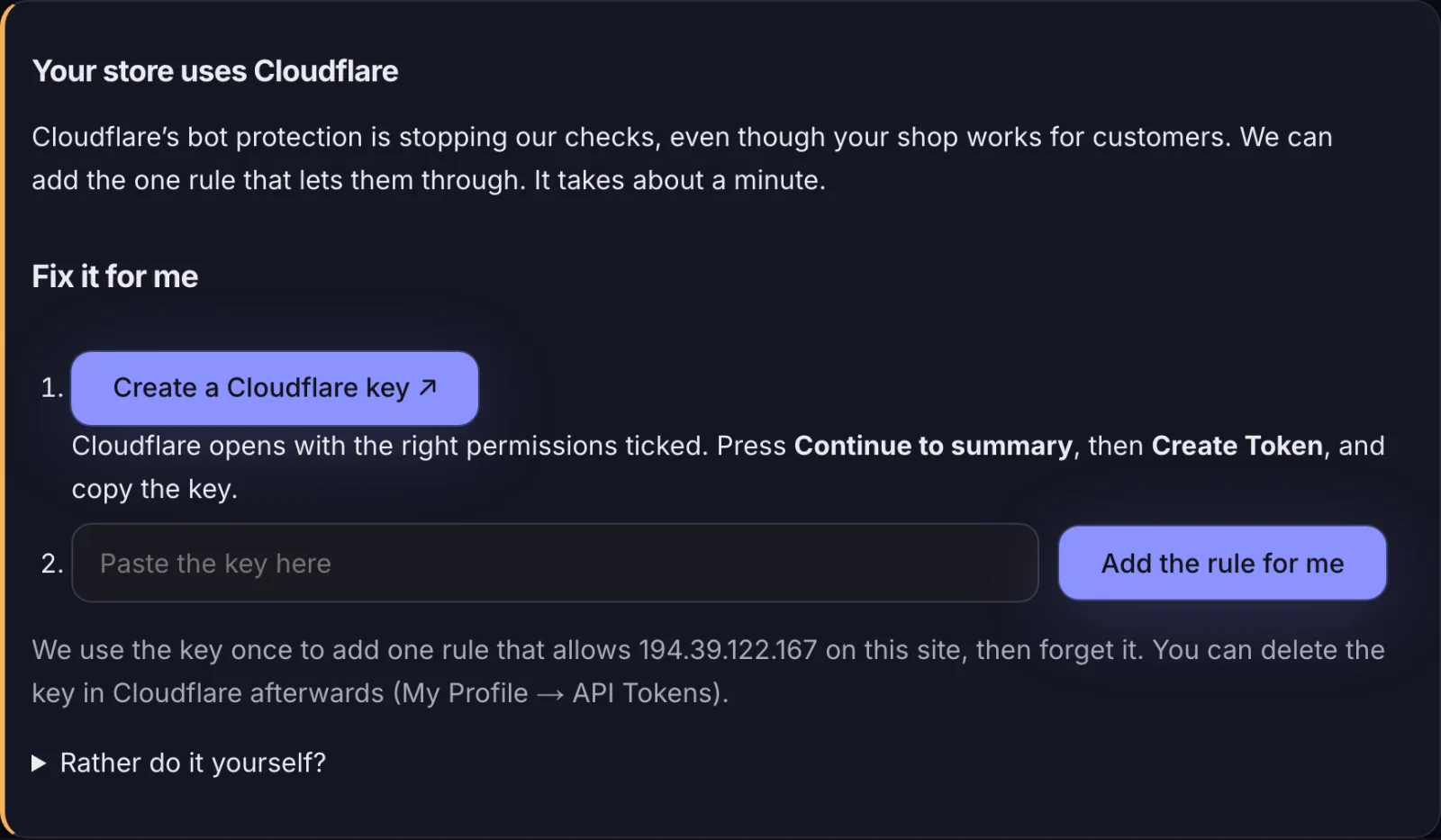
We add one IP Access Rule that allows 194.39.122.167 on that site, check your store straight away, and forget the key: it isn’t stored or logged. If a rule for our address already exists, we leave it alone. You can delete the key afterwards in Cloudflare under My Profile → API Tokens.
Cloudflare: by hand
- Log in to Cloudflare and open your site.
- Go to Security → WAF → Tools. In some dashboards it is under Security → Security rules.
- Under IP Access Rules, enter
194.39.122.167, choose Allow and This website, add a note such as “Cart Lookout”, then Add.
Why this rule: Cloudflare’s Bot Fight Mode can’t be skipped with custom WAF rules or by browser name, but it doesn’t run when an IP Access Rule matches first. The other option is to turn Bot Fight Mode off (Security → Bots).
Wordfence
Wordfence → Firewall → All Firewall Options → Allowlisted IP addresses: add 194.39.122.167, then Save.
Sucuri
Sucuri dashboard → Firewall → Access Control → Allowlist IP addresses: add 194.39.122.167.
Your host’s firewall
Some hosts (for example SiteGround, Kinsta or WP Engine) run their own firewall. Ask their support to allow 194.39.122.167 for your site; you can send them this page.
Check it worked
On your Cart Lookout dashboard, open the store or the incident and press I’ve allowed it, check now. The result appears within a minute. Questions: hello@cartlookout.com.