Pending payment means WooCommerce created the order but hasn’t been told it was paid. A few of these are normal. Many of them, or ones the customer says they paid, mean something is wrong. Pick what you’re seeing.
What each order status means
An order only moves out of Pending payment when the payment method tells WooCommerce what happened. Until then, WooCommerce sends no emails about it: not to you, and not to the customer.
| Status | What it means | What to do |
|---|---|---|
| Pending payment | The order exists; payment hasn’t been confirmed. | Check whether money arrived (below). If not, it’s usually an abandoned payment. |
| Failed | The payment was tried and refused, or an error stopped it. | The customer can try again. Many failures at once point to a broken payment method. |
| On hold | Waiting for you, for example a bank transfer, or a payment the provider is still reviewing. | Confirm the money arrived, then set it to Processing. |
| Processing | Paid. Ready to fulfil. | Ship it. |
| Cancelled | Cancelled by you, the customer, or WooCommerce’s time limit for unpaid orders. | If the customer did pay, see “Fix a paid order” below. |
When pending orders are normal
WooCommerce creates the order as soon as the customer presses Place order, before the payment is finished. If the customer closes the payment window, is refused by their bank or gives up at a security check, the order stays on Pending payment. A handful a week is normal for most shops.
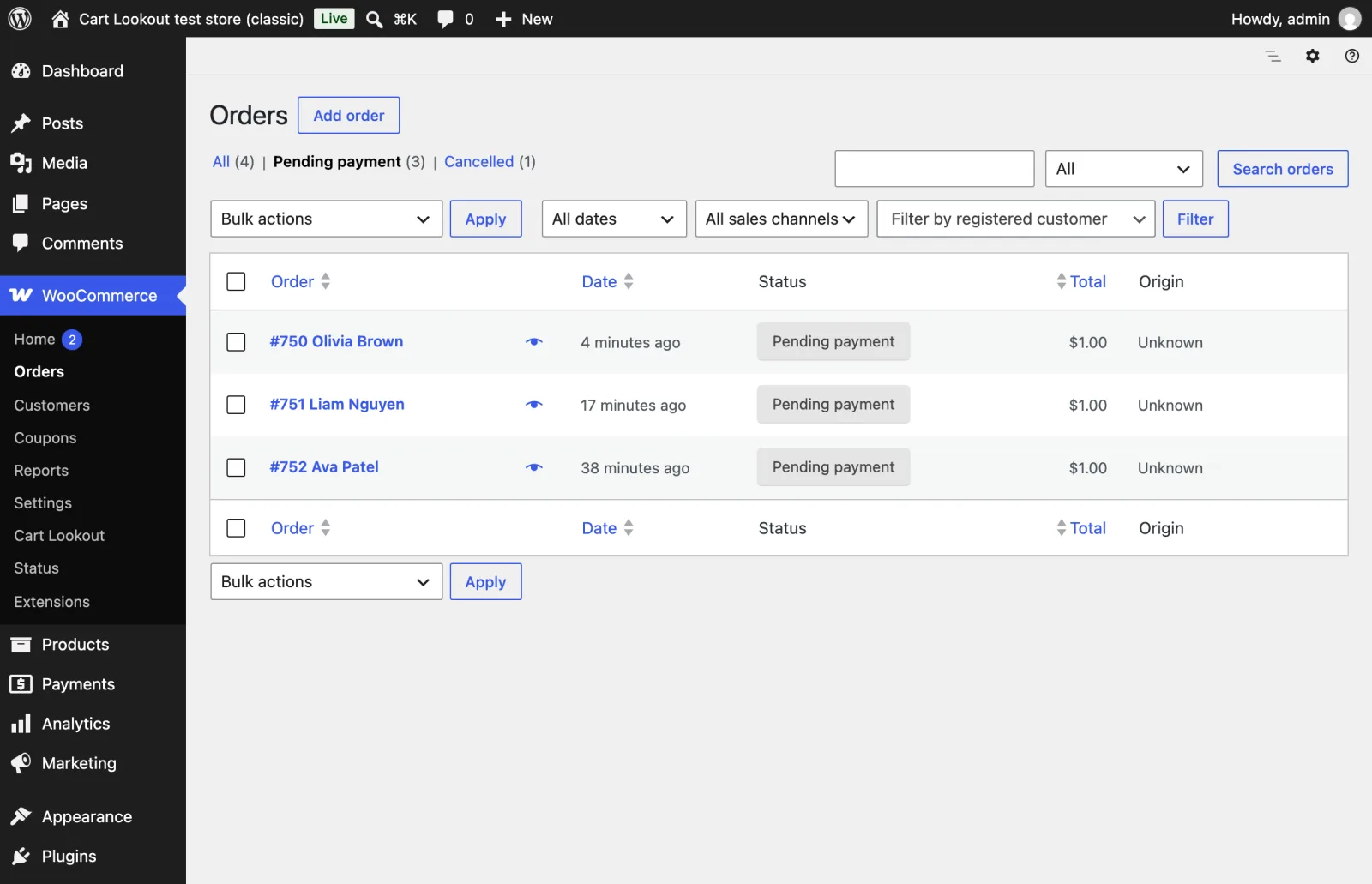
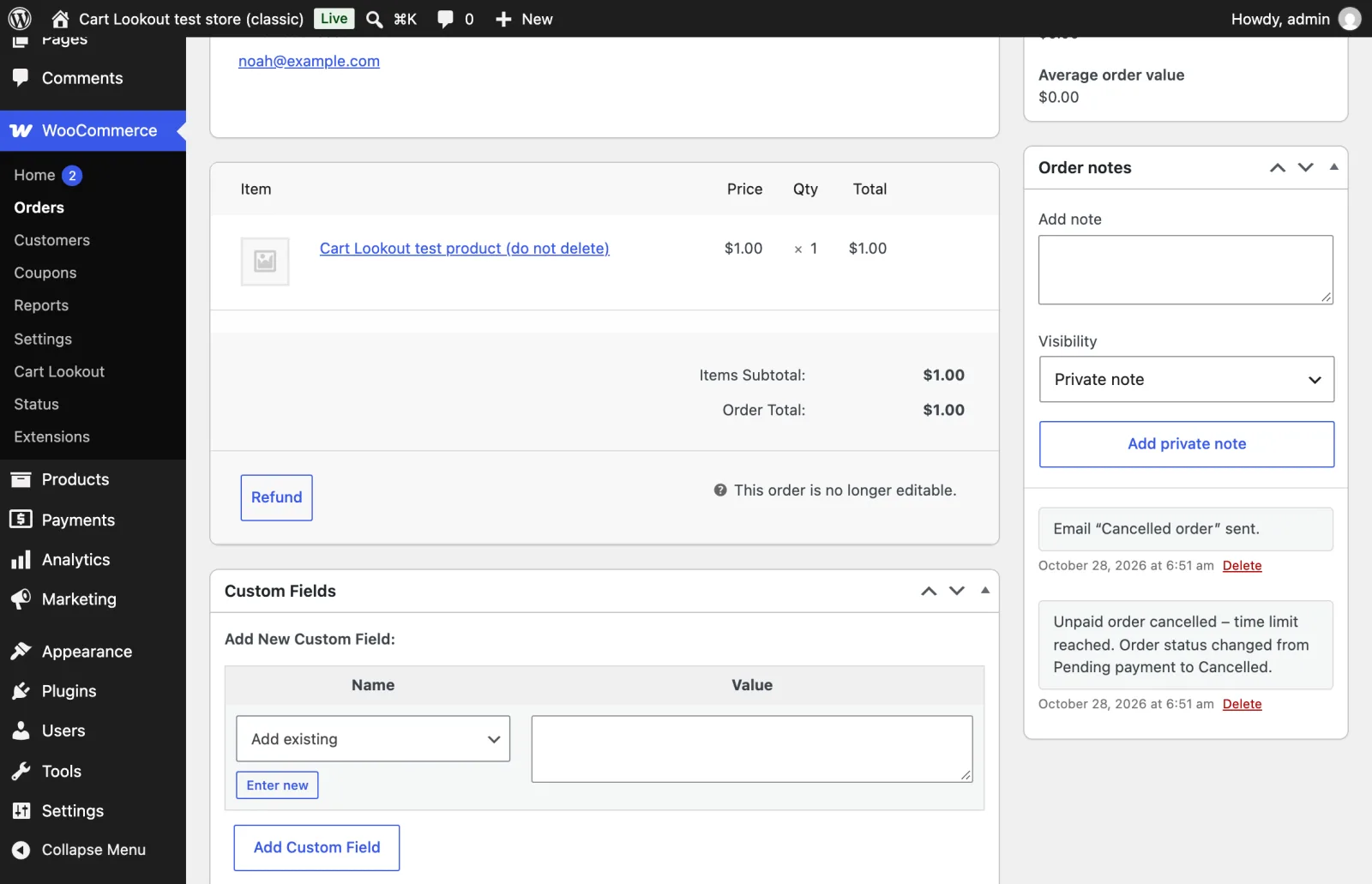
To check one, open the order and read the Order notes on the right. Payment plugins write there what they saw: a declined card, a cancelled payment, or nothing at all if the customer never got that far.
Paid but pending: the confirmation can’t get through
Card and wallet payments are confirmed by a message the payment provider sends to your store after the payment, called a webhook. If something blocks that message, the customer has paid but the order stays on Pending payment.
- Customer paysThe provider takes the money.
- Confirmation refusedA security plugin blocks the provider’s message (error 403).
- Order stays on Pending paymentNo “new order” email, so nobody notices.
- WooCommerce cancels it“Unpaid order cancelled - time limit reached.” The customer was charged.
Where to look depends on the payment method:
- Stripe: the Stripe Dashboard lists failed webhook deliveries to your site. Full steps in our Stripe guide.
- PayPal Payments: in the plugin’s settings, the Troubleshooting section lists your webhooks and has Resubscribe webhooks (use it after a domain change) and Simulate webhooks to test that they arrive.
- Other payment methods: look for “webhook”, “notification URL” or “callback” in its settings and in the provider’s dashboard.
Common blockers, in the order we’d check them:
- A firewall, security plugin or CDN bot protection refusing the provider (look for 403 errors in the provider’s delivery log).
- Maintenance or “coming soon” mode, or a password on the site.
- A changed site address (a move to https, a new domain, a staging copy) while the provider still sends to the old one.
- A PHP error on your site when the message arrives: check WooCommerce›Status›Logs for that time.
Fix a paid order safely
Only mark an order as paid once you’ve seen the money. Work through this for each one:
The Hold stock setting: when WooCommerce cancels unpaid orders
Under WooCommerce›Settings›Products›Inventory, Hold stock (minutes) sets how long an unpaid order keeps its stock. The default is 60. When the time is up, WooCommerce cancels the order and adds this note:
Unpaid order cancelled - time limit reached.
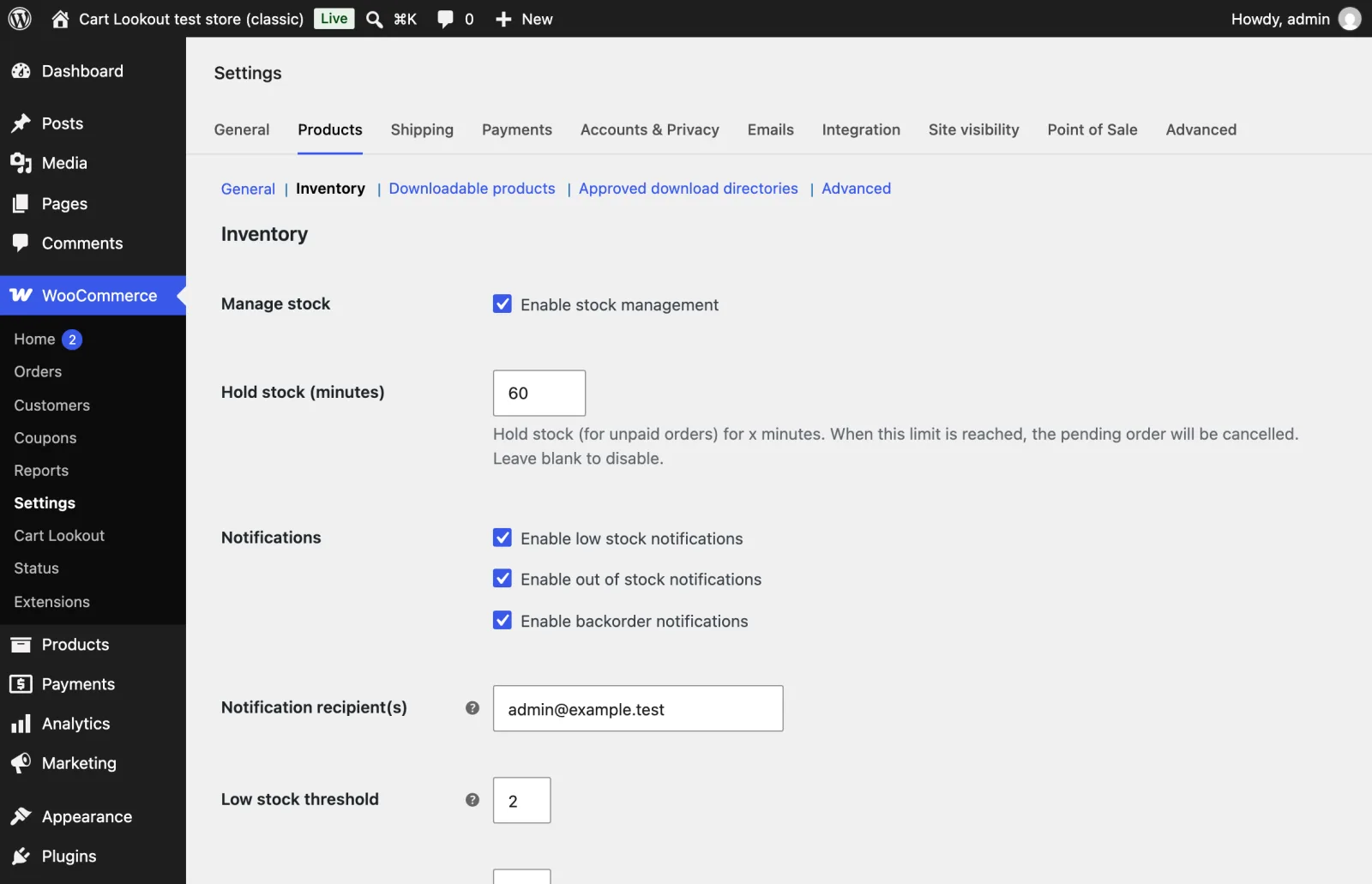
- It only works when Manage stock is ticked on the same screen and Hold stock isn’t blank.
- It only cancels orders placed through the checkout. Orders you create in the admin are left alone.
- If a payment method confirms slowly, a short time can cancel orders that are about to be paid. Raise it rather than leaving it blank: blank means unpaid orders are never cancelled.
Pending orders never cancelled? Check scheduled tasks
WooCommerce cancels unpaid orders with a scheduled task. Open WooCommerce›Status›Scheduled Actions and search for woocommerce_cancel_unpaid_orders. You should see one pending action, due within the Hold stock time.
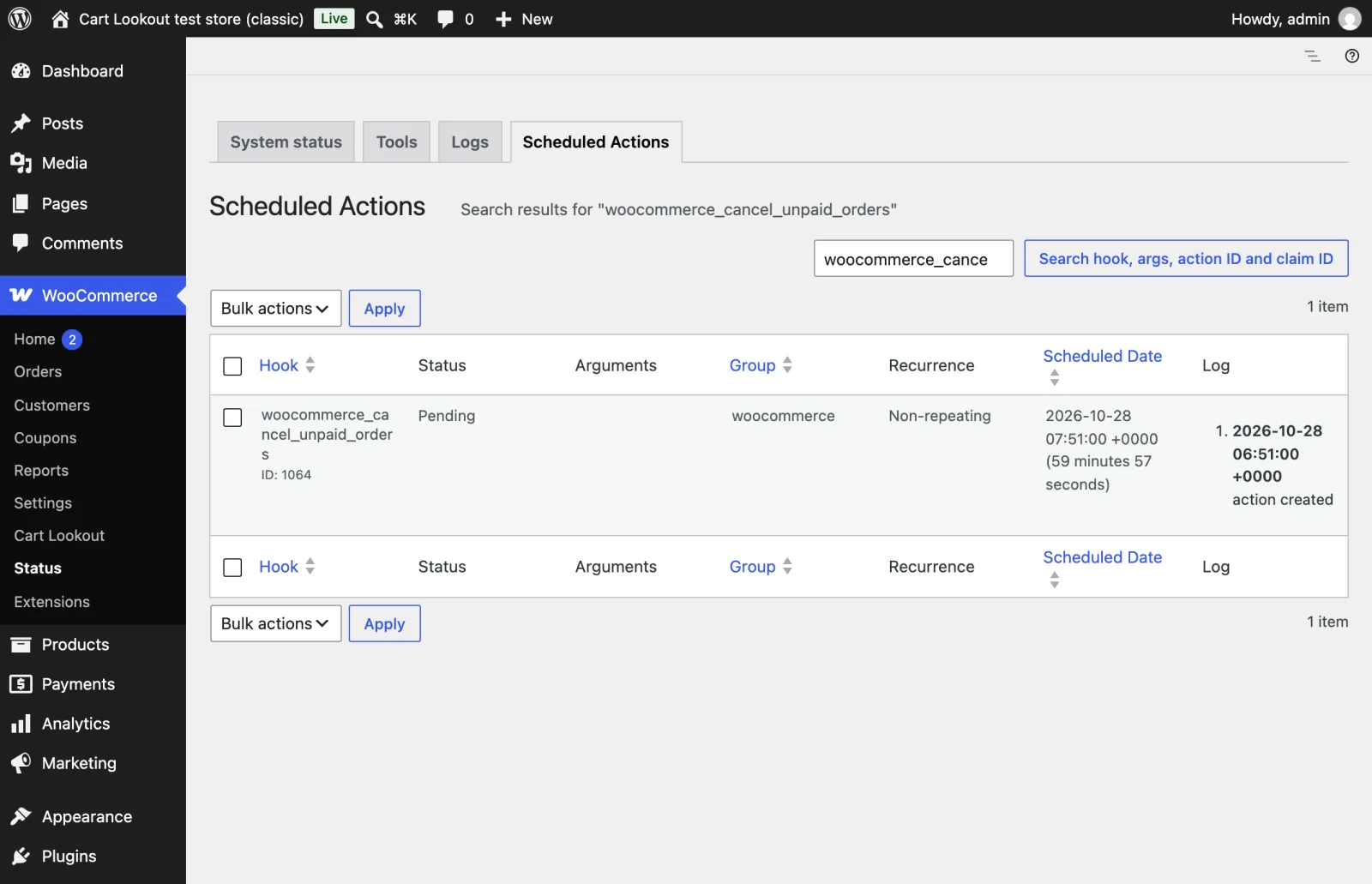
- Many “past-due” actions: scheduled tasks aren’t running. If your host turned off WordPress’s built-in scheduler, ask them to add a real server task (cron) instead.
- No action at all: check Manage stock and Hold stock above, then save the inventory settings to schedule it again.
Know next time, before your customers do
A blocked payment confirmation is easy to miss: nothing errors on the checkout page, no email arrives, and the order quietly turns into a cancelled one an hour later. The customer finds out first.
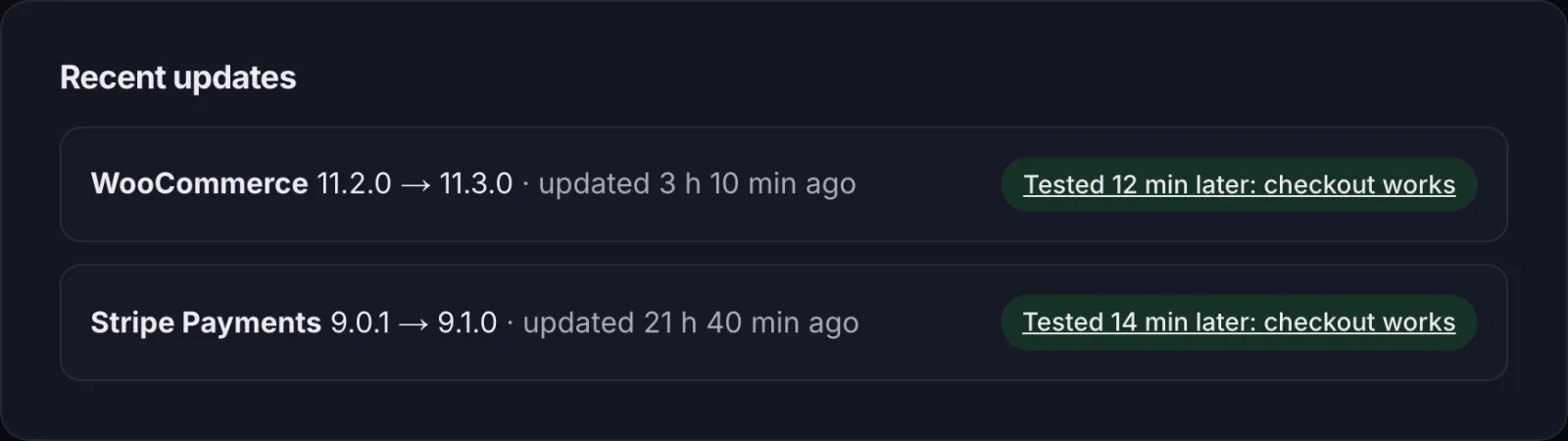
Cart Lookout places a real test order on your store every 2 hours and after every update, then deletes it. Your customers don’t see it and no emails go out. If checkout fails twice in a row, you get an email with the step that broke, a screenshot and the change made just before it.
Still stuck? Email hello@cartlookout.com and a developer will take a look. More fix guides