This guide is for the free WooCommerce PayPal Payments plugin, the official way to take PayPal in WooCommerce. Most PayPal problems fall into five groups. Pick the one you’re seeing.
Check PayPal is connected
Go to WooCommerce›Settings›Payments. If PayPal shows Action needed and a Complete setup button, it isn’t connected to a PayPal account yet, so it can’t appear at checkout.
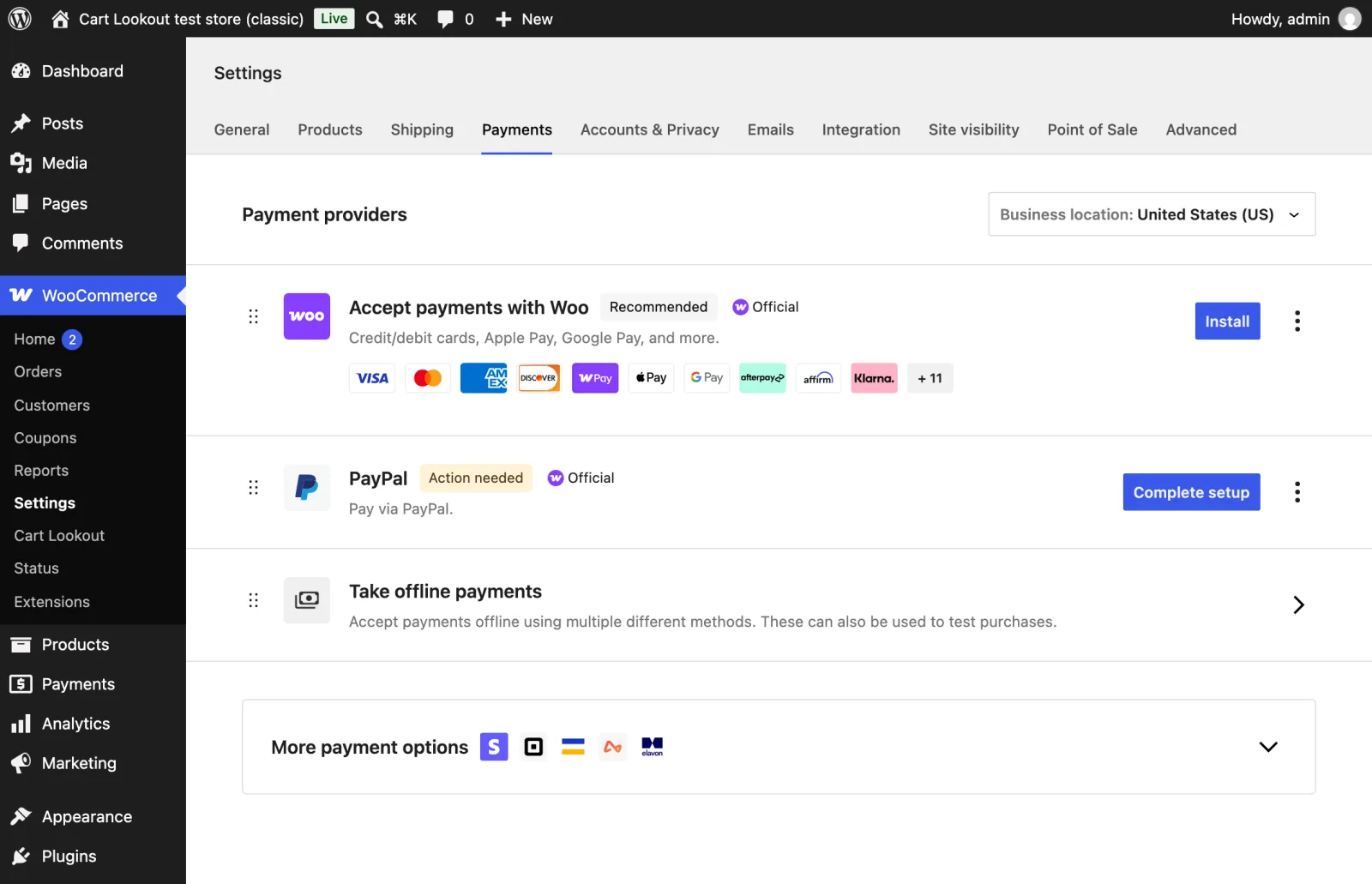
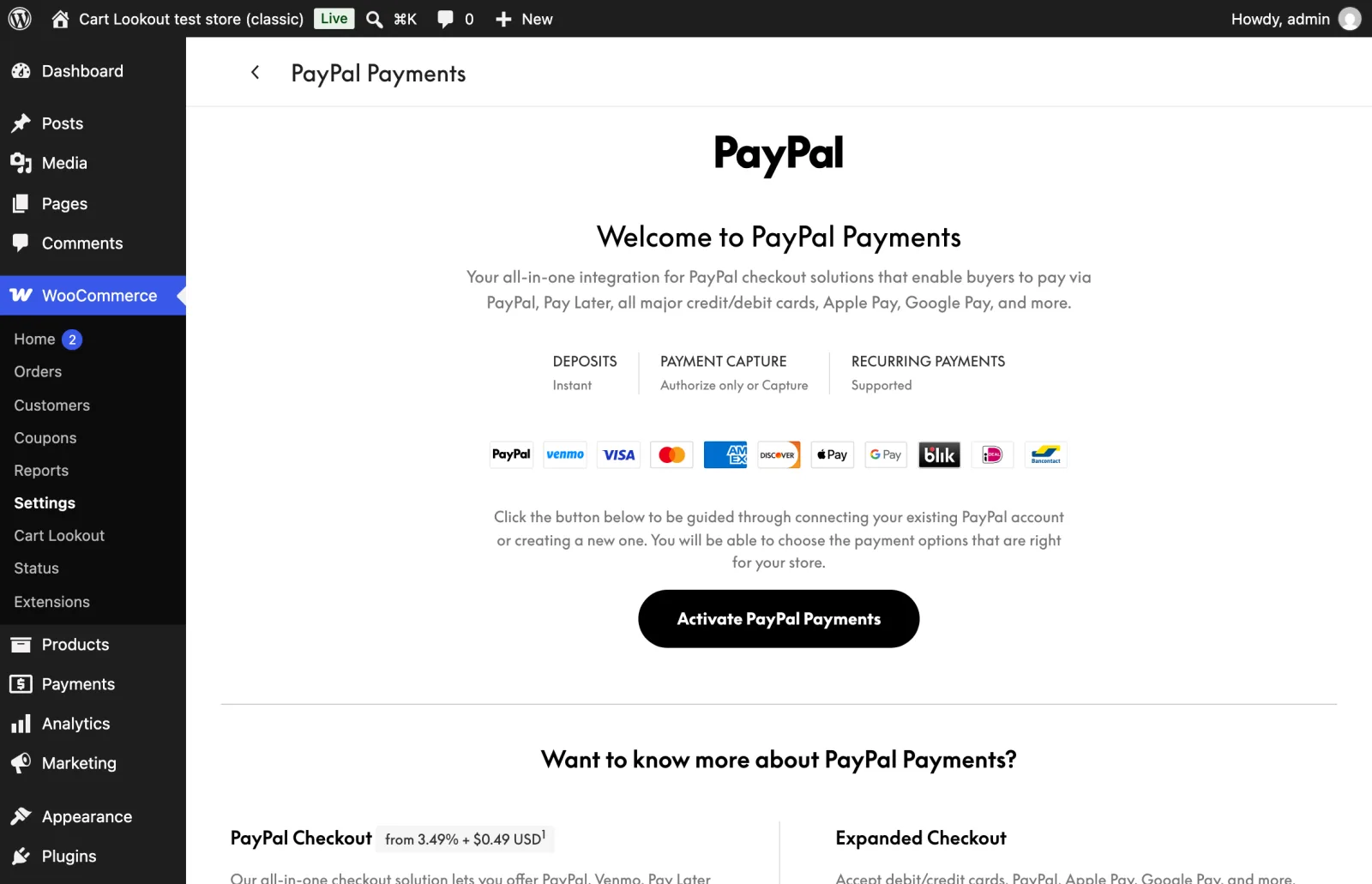
Press Complete setup. PayPal Payments opens its welcome screen; Activate PayPal Payments walks you through signing in to your PayPal business account.
What PayPal’s error messages mean
These are the messages PayPal Payments shows shoppers. The real reason is in the PayPal log (next step).
| Message | What it means | What to do |
|---|---|---|
Something went wrong. Please try again or choose another payment source. | A general error; the log has the detail. | Read the PayPal log for that time. |
Payment provider declined the payment, please use a different payment method. | PayPal refused the payment, often its own risk checks. | Usually nothing on your side. Many at once: check your PayPal account for limits or notices. |
Your payment could not be processed because your bank declined this transaction. | The customer’s bank said no. | Nothing on your side; the customer can use another card. |
Payment session expired. Please try again. | The payment was started too long ago. | Fine once in a while. If it’s frequent, make sure the checkout page isn’t cached. |
The payee has not yet set up appropriate receiving preferences for their account. | The payment is in a currency your PayPal account isn’t set to accept. | In your PayPal account’s payment settings, allow payments in that currency. |
Read the PayPal log
In PayPal Payments’ settings, open the Troubleshooting section and switch on Logging. Then make a test payment (or wait for the next failure) and look under WooCommerce›Status›Logs for the woocommerce-paypal-payments log. Find the time of the failed payment: PayPal’s reply there names the real reason.
Orders stuck on Pending payment
After a payment, PayPal sends a message to your store (a webhook) to confirm it. If that message can’t get through, the customer has paid but the order can stay on Pending payment. PayPal Payments receives these messages at this address on your site:
https://yourstore.com/wp-json/paypal/v1/incoming
- In PayPal Payments’ Troubleshooting section, the Webhooks list shows what your store is subscribed to.
- Simulate webhooks sends a test message and tells you whether it arrived.
- Resubscribe webhooks sets them up again. Use it after moving to a new domain or switching to https.
- If the test doesn’t arrive, allow that address in your firewall or security plugin, and check the site isn’t in maintenance mode.
For orders that are already paid but still pending, follow our steps to fix a paid order safely.
Pay Later, cards, Apple Pay and Google Pay
These options only appear when all of the below are true, so a missing button doesn’t always mean a fault.
Know next time, before your customers do
PayPal problems often start with something else changing: an optimisation plugin update, a new firewall rule, a domain move. Customers rarely report a missing PayPal button; they leave or pay another way.
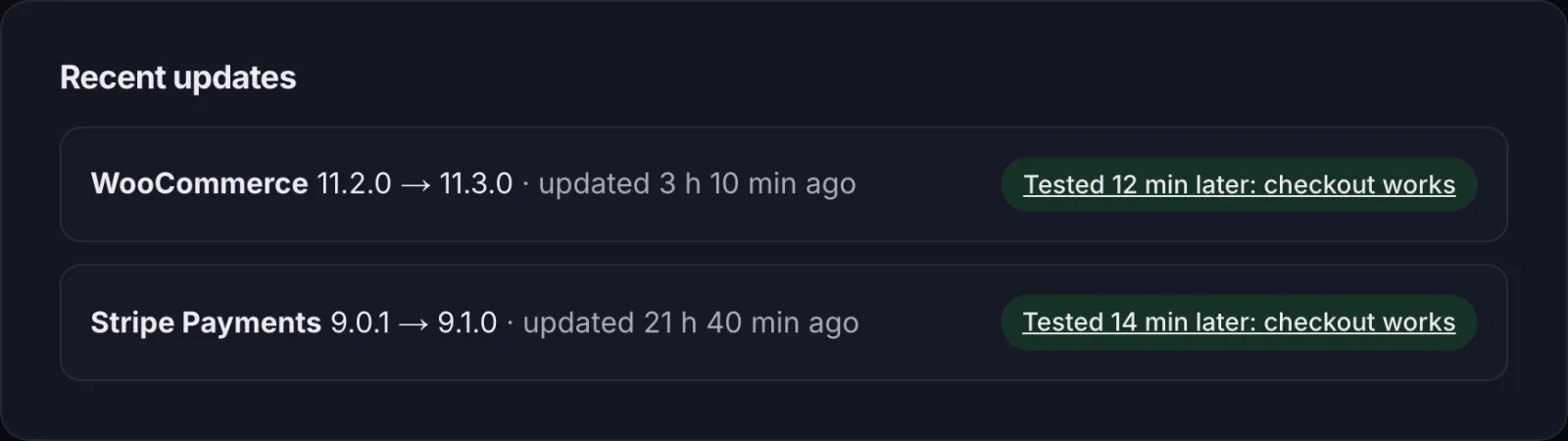
Cart Lookout places a real test order on your store every 2 hours and after every update, then deletes it. Your customers don’t see it and no emails go out. If checkout fails twice in a row, you get an email with the step that broke, a screenshot and the change made just before it.
Still stuck? Email hello@cartlookout.com and a developer will take a look. More fix guides