Set up Cart Lookout in five minutes
Add your store, install the plugin, paste one token. Then we test your checkout around the clock.
You need a WooCommerce store and admin access to its WordPress. There’s nothing to configure in WooCommerce itself, and your customers won’t notice a thing.
1. Add your store
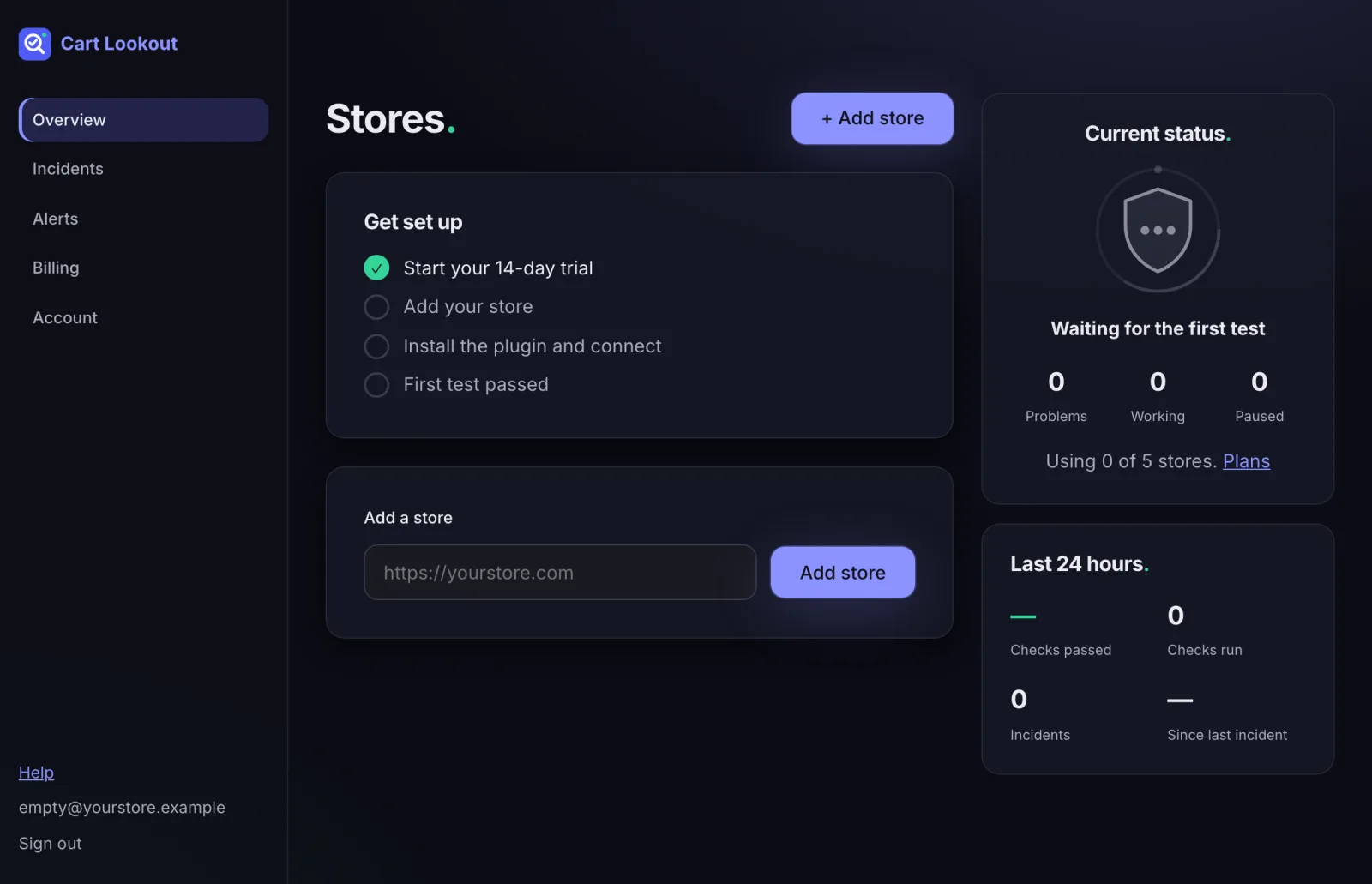
Sign in to your dashboard. Under Add a store, type your shop’s address (for example https://yourstore.com) and press Add store.
2. Install the plugin
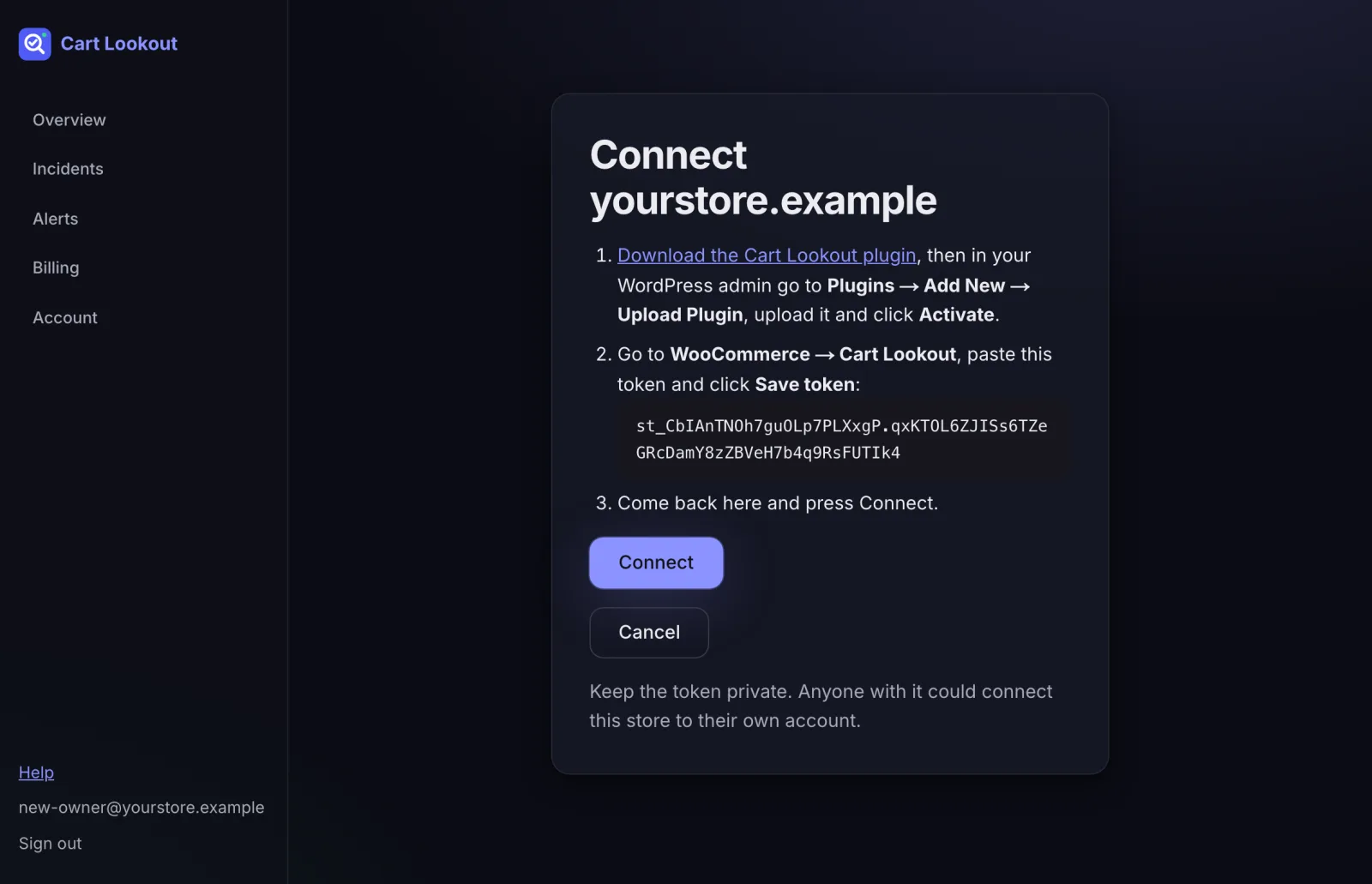
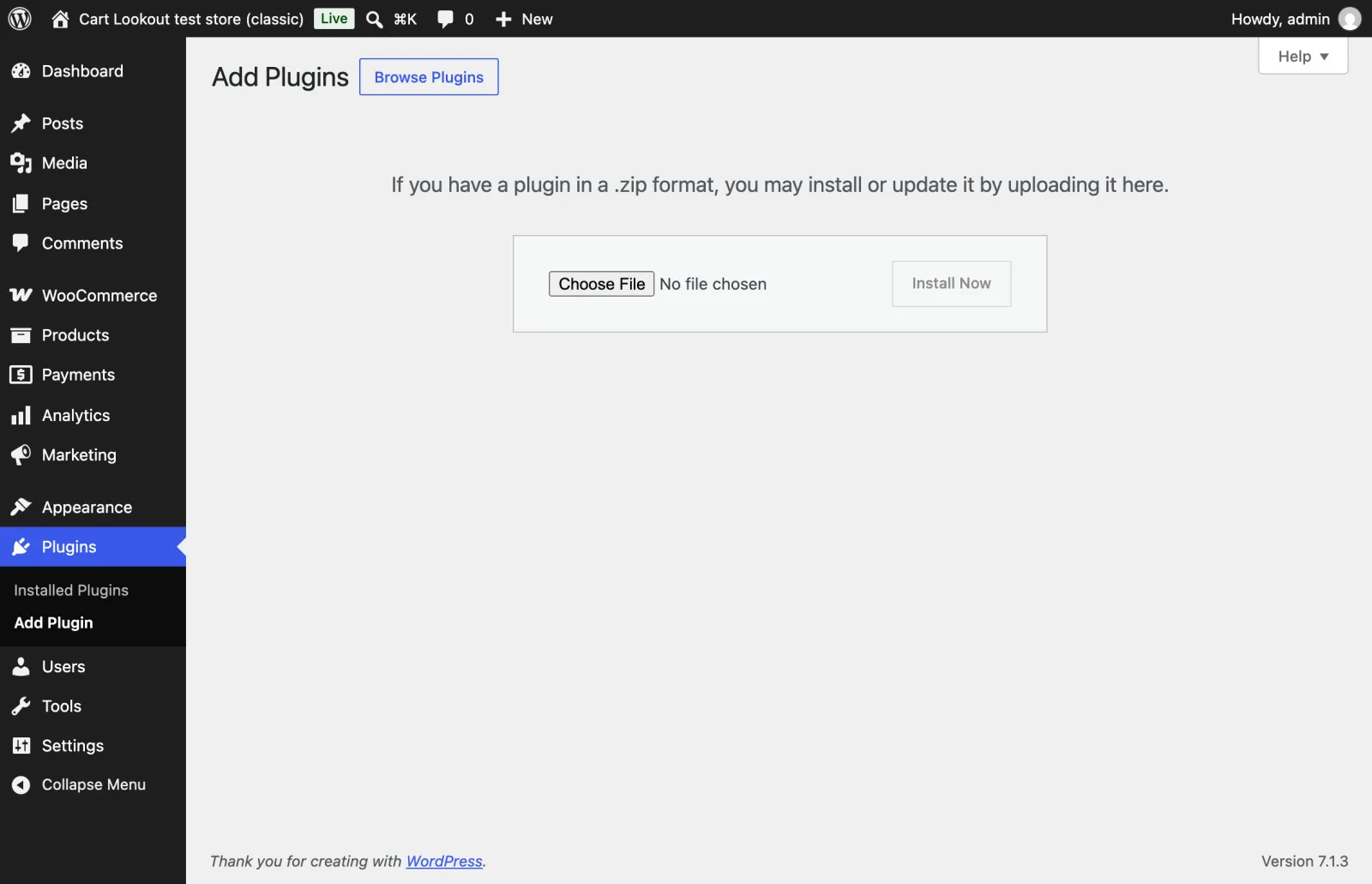
The next page shows your connection token and a link to download the plugin. In your WordPress admin, go to Plugins → Add New → Upload Plugin, choose the file, press Install Now, then Activate.
3. Paste the token
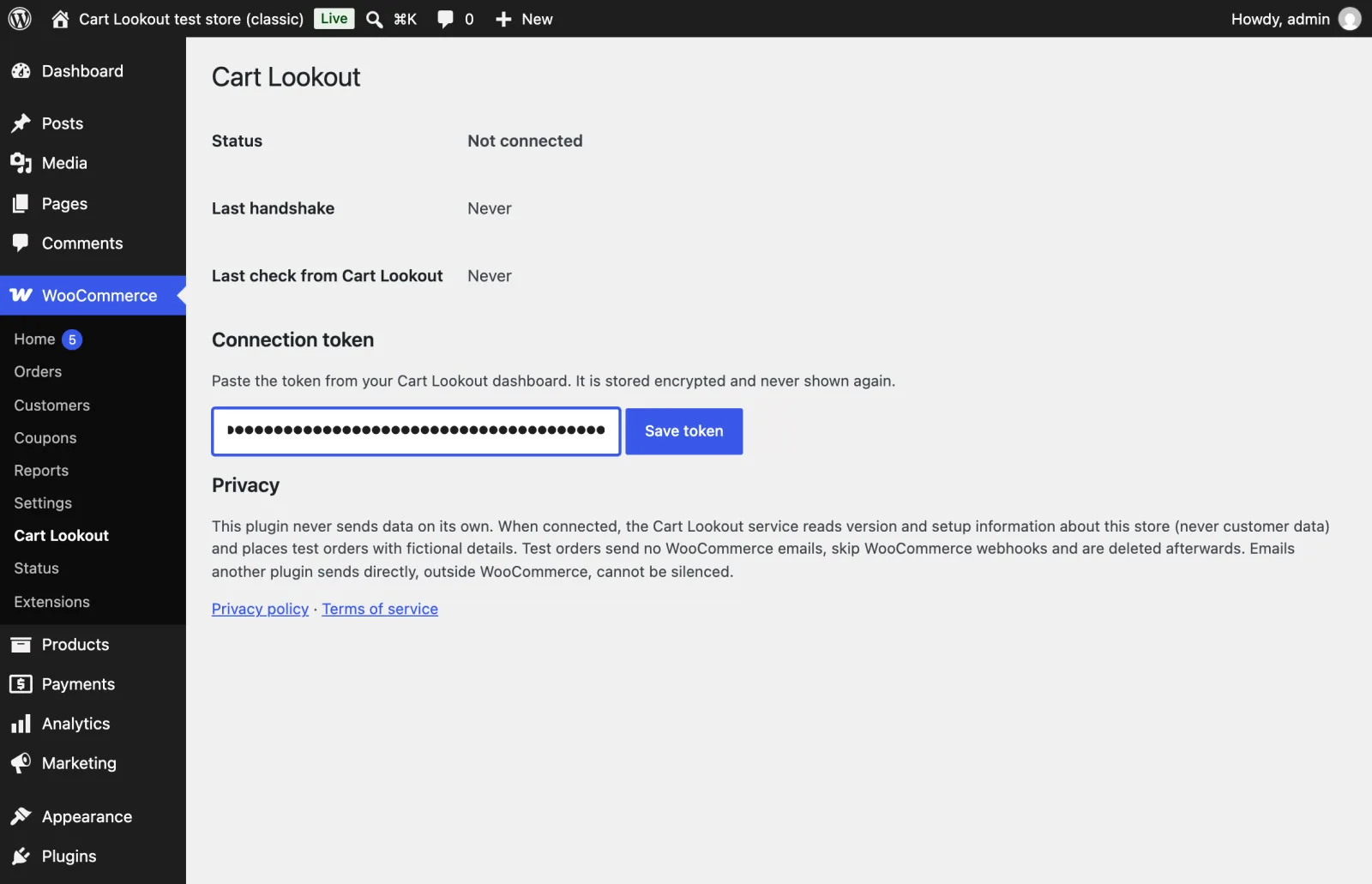
In WordPress, open WooCommerce → Cart Lookout. Paste the token from your dashboard and press Save token. It’s stored encrypted and never shown again.
4. Connect
Back on your dashboard, press Connect. We check the plugin answers, then run your first check within a few minutes. You don’t need to wait on the page.
5. Your first check
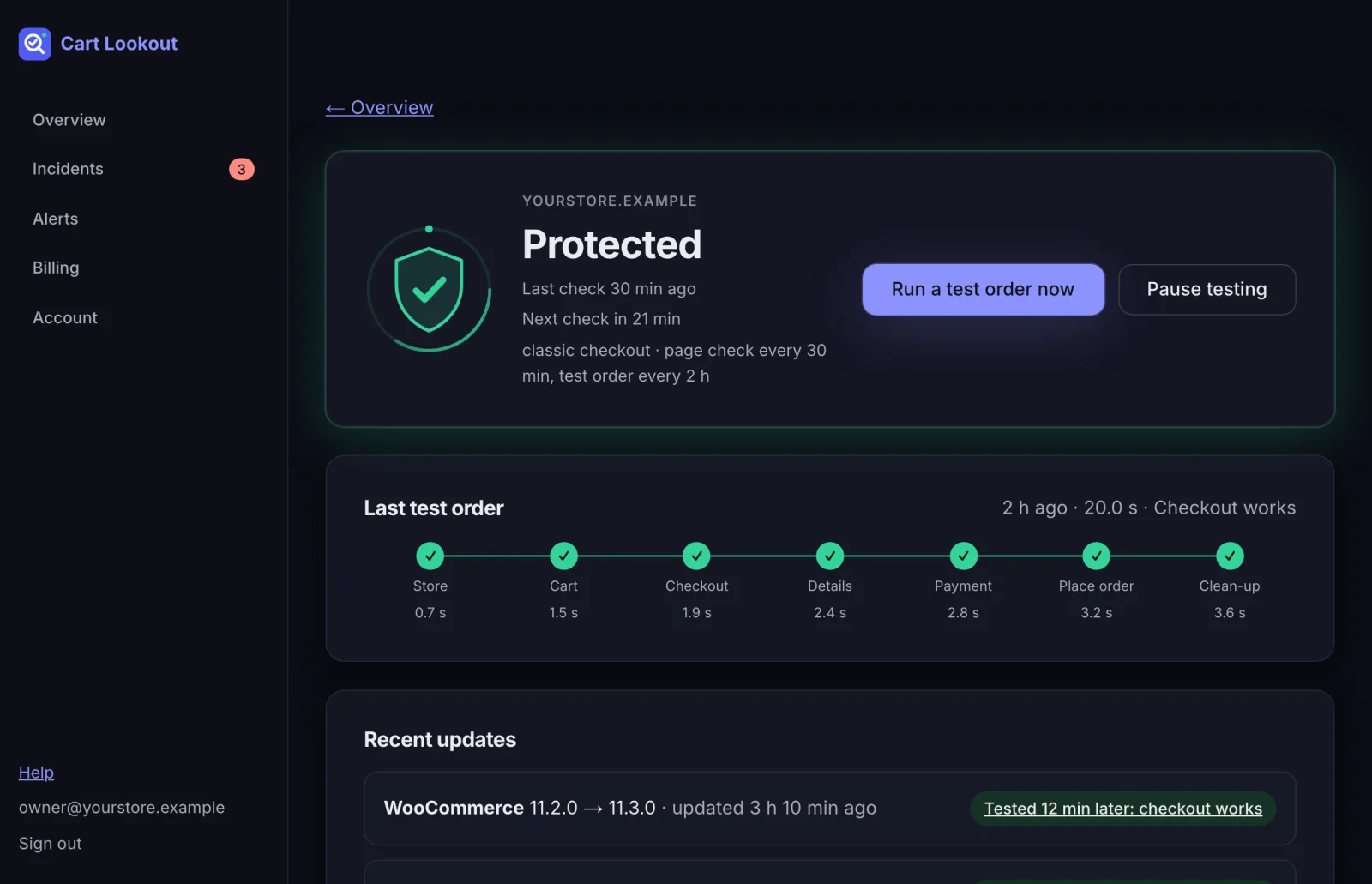
When the first check passes, your store shows Protected. From then on we check the checkout page every 30 minutes and place a full test order every 2 hours, plus one soon after every plugin, theme or WordPress update. Every Monday you get a short report of the week.
If something gets in the way
- Cloudflare or a security plugin blocks us: let Cart Lookout through your firewall.
- The dashboard says the store isn’t connected: reconnect the plugin.
- Still stuck? Email hello@cartlookout.com and we’ll help.
Didn’t help? Email hello@cartlookout.com. More help